For instance, let’s say I’m interested in bird watching. I can do a search in Catalyst for birds and find a book that looks good:
![[visual description: screen shot of the Catalyst record for the book "Birds of the World" with the location of St. Olaf Science Library highlighted.]](https://bridgeoutreach.library.sites.carleton.edu/wp-content/uploads/2016/11/birds-2kby73r.jpg)
[visual description: screen shot of the Catalyst record for the book “Birds of the World” with the location of St. Olaf Science Library highlighted.]
![[visual description: screenshot of the Catalyst virtual browse showing 6 books. The location of three of the books is highlighted: Carleton, Carleton & St. Olaf, and St. Olaf]](https://bridgeoutreach.library.sites.carleton.edu/wp-content/uploads/2016/11/birdbrowse-tuucx4.jpg)
[visual description: screenshot of the Catalyst virtual browse showing 6 books. The location of three of the books is highlighted: Carleton, Carleton & St. Olaf, and St. Olaf]

- Using filters to target in on the best results.
- The difference between an “Everything” and a “Local” search. NOTE: “Local” was recently renamed “Carl/Ole Catalog”
- Signing in to your account
- Changes that we’re expecting in the coming months as the system continues to improve
- Ask Us! If you have any questions or concerns!
![[visual description: brochure introducing Catalyst and listing 5 things to know about it: Filters; Everything vs. Local; Your Account; Changes; and Ask Us for help.]](https://bridgeoutreach.library.sites.carleton.edu/wp-content/uploads/2016/10/CatalystBrochure-1jv3tc3.jpg)
Click on the image to download a pdf version of this brochure. [visual description: brochure introducing Catalyst and listing 5 things to know about it: Filters; Everything vs. Local; Your Account; Changes; and Ask Us for help.]
The link to follow to correctly resolve to full text is the link that will mention the name of the database, like this one:
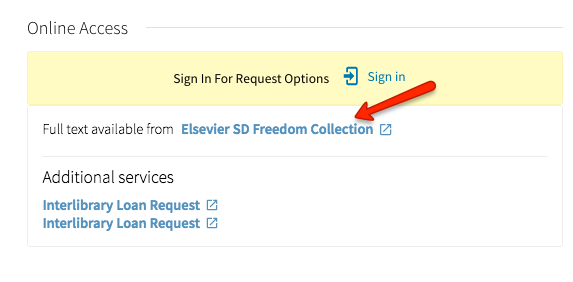
[visual description: screen shot of Catalyst screen for online access to an article. A red arrow points to the link for full text, which says “Full text available from Elsevier SD Freedom Collection”]
If you click on the “Sign In” link in the yellow box that says “Sign in for Request Options,” you are redirected to the wrong page (it will look like a web page from the 1990s with old styling).

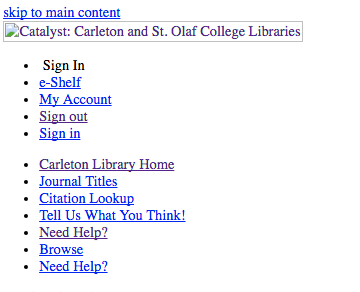
This is a known issue and we are working hard to fix it, but in the meantime, simply follow the “Full text available from _____” link to get to the full text of the article.
]]>
Workarounds:
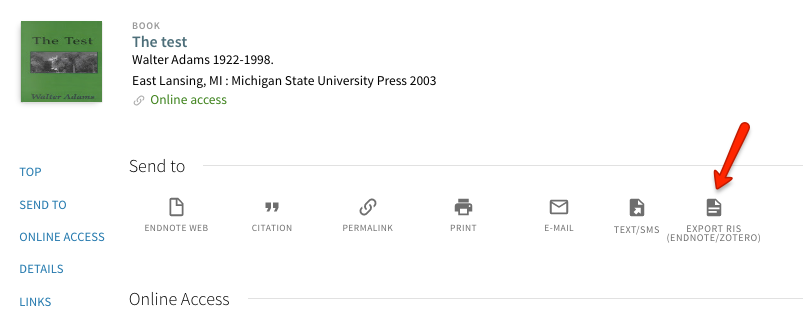
- You may manually input records into Zotero.
- Use Worldcat to input the metadata from their site using the Zotero bookmarklet.
Catalyst is displaying incorrect full-text accessibility information for many of our articles, including major subscriptions we have electronically like the New York Times or JSTOR.

We are working with our vendor (ExLibris) to resolve this issue with the utmost urgency. In the meantime, some suggested workarounds:
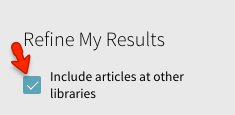
- To ensure complete results, expand your search to include articles from other libraries, using the checkbox near the top of the filters.
- If it appears in the record for the article, follow the link within the record for subscribers if you suspect we do have electronic access. This link will normally be at the end of the record.
- Check with a librarian if you suspect we have access to the article but this is not reflected in Catalyst and you are unable to determine how to get to the article in another way. You can report this to the Research/IT desk or via the feedback form.
- Use another one of the library’s databases to search for articles until this issue is fixed.
- Search the Journals List from within Catalyst or the library’s home page to determine if we have access to the issue you need.

With that interface upgrade, we’ve revised our
Top 5 things to know about Catalyst…
5. Use filters on the results screen to target in on the best results
Let’s say you’re interested in scholarly articles about birds. One of the quickest ways to do that is to simply search for the word “birds.”

[screen shot of the Catalyst search box from the libraries’ website with a search for the word “birds”.]
![[screen shot of Catalyst result screen with "Scholarly Articles" highlighted.]](https://bridgeoutreach.library.sites.carleton.edu/wp-content/uploads/2016/09/birdsresults-2c0sxjp.jpg)
[screen shot of Catalyst result screen with “Scholarly Articles” highlighted.]
4. Local Catalog vs Everything vs Course Reserves…
Just as before, the new interface lets you choose at the beginning of your search which set of materials you want to search.
- Everything: includes articles, books, movies, images, and more. This gives you the broadest search with the most results.
- Local Catalog: records of items in the Carleton and St. Olaf libraries. Close to a traditional library catalog, it includes the items the libraries have selected for the collection: books, e-books, movies, journal titles, and government documents. It will not find articles or other content from databases that we subscribe to.
- Course Reserves: exactly what you’d think! Use this to search for course materials that faculty have put on reserve for a specific course.
Carleton e-Reserves note! At Carleton and looking for e-Reserves? Click here to get to our e-Reserves, or use the Reserves tab on our website.
Read more about the differences between Everything and Local Catalog.
3. Log in to renew books, see your account, and request books from the other library
In the upper right corner of the Catalyst screen, you should see the word Guest (if you see your name, you’re already logged in!).
![[screen shot of upper right corner that says "Guest"]](https://bridgeoutreach.library.sites.carleton.edu/wp-content/uploads/2016/09/Guest-vep371.jpg)
[screen shot of upper right corner that says “Guest”]
![[screen shot of Catalyst that shows the "Sign in" option that appears when you hover over "Guest"]](https://bridgeoutreach.library.sites.carleton.edu/wp-content/uploads/2016/09/sign-in-2fkunr7.jpg)
[screen shot of Catalyst that shows the “My Library Account” and “Sign in” options that appears when you hover over “Guest”]
![[screen shot from Catalyst after you click the title of an item. "Request" is highlighted.]](https://bridgeoutreach.library.sites.carleton.edu/wp-content/uploads/2016/09/request-item-1z1pdsp.jpg)
[screen shot from Catalyst after you click the title of an item. “Request” is highlighted.]
2. The interface will continue to change
We are continuing to make improvements to the interface, and the vendor is upgrading the system as well, so you can expect the interface to change a bit. In particular, watch for a new logo for Catalyst, and possibly a new color scheme.
1. We are here to help!
![[screen shot of Catalyst with "Need help" and "Chat with us" highlighted]](https://bridgeoutreach.library.sites.carleton.edu/wp-content/uploads/2016/09/gethelp-112ep3x.jpg)
[screen shot of Catalyst with “Need help?” and “Chat with us” highlighted]
![[Screen shot of the Catalyst search form with "Local Catalog" selected]](https://bridgeoutreach.library.sites.carleton.edu/wp-content/uploads/2016/06/local-catalog-1lgol5u.jpg)
[Screen shot of the Catalyst search form with “Local Catalog” selected]
![[screen shot of Catalyst filter to narrow results to those at a particular library]](https://bridgeoutreach.library.sites.carleton.edu/wp-content/uploads/2016/06/Library-filter-1ydffx7.jpg)
[screen shot of Catalyst filter to narrow results to those at a particular library]