Updated: Oct. 25, 2016 with screenshots from new Catalyst interface.
As part of the Bridge consortium (that is, the Carleton and St. Olaf libraries) we have access to items from all of the libraries, no matter which campus you’re currently on. Read on for steps to request an item from another library:
- Click on the title of the item you’re interested in.
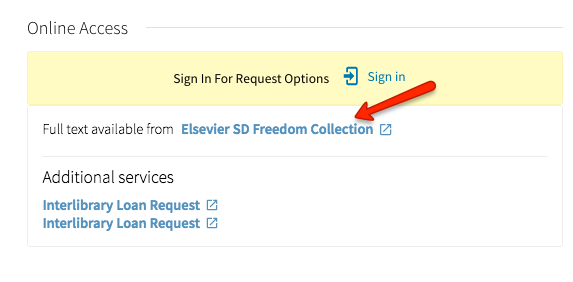
- Click “Sign In” in the yellow box in the middle of the screen and choose to log in with your college Username/Password.
![[visual description: screen shot of the Catalyst record for a book with "Sign In" circled.]](https://bridgeoutreach.library.sites.carleton.edu/wp-content/uploads/2016/07/sign-in-2fnf9bu.jpg)
[visual description: screen shot of the Catalyst record for a book with “Sign In” circled.]
- You’ll be brought back to the screen for a book, and now should see a “Request” link under “Request Options”. Click the link.
![[visual description: partial screen shot of Catalyst screen for a book with "Request" circled.]](https://bridgeoutreach.library.sites.carleton.edu/wp-content/uploads/2016/07/Request-2e9qvgm.jpg)
[visual description: partial screen shot of Catalyst screen for a book with “Request” circled.]
- Choose where you’d like to pick up the item and click “Request”. You’re done!
You will receive an email when the book has arrived at your chosen pick up location.
Once you’ve logged in to request one item, you’ll be logged in for the rest of your session, so you can skip step 2 for any subsequent items that you want to request.
![[Screen shot of the Catalyst search form with "Local Catalog" selected]](https://bridgeoutreach.library.sites.carleton.edu/wp-content/uploads/2016/06/local-catalog-1lgol5u.jpg)
![[screen shot of Catalyst filter to narrow results to those at a particular library]](https://bridgeoutreach.library.sites.carleton.edu/wp-content/uploads/2016/06/Library-filter-1ydffx7.jpg)